
- Networked projectors and displays report power, input, AV mute, lamp or light-source hours, filter hours, and fan, temperature and cover errors. PJLink exposes most of it on almost every brand.
- Alert on state and errors, not just reachability: a projector that answers the network while showing a lamp error still fails the meeting.
- Lamp and filter hours are maintenance data: they tell you which rooms need a lamp, a filter clean or a replacement plan.
- Pair monitoring with remote control (power, input and mute over the same protocol) and most display faults are fixed before anyone walks in.
Projectors and flat panels are the most visible devices in any room. Nobody notices a healthy DSP, but everyone notices a projector showing a lamp warning or a display stuck on the wrong input. The good news is that almost every networked projector and commercial display can report its own health, and most of it is available through one open protocol that nearly every manufacturer supports.
This guide covers what a projector or display can tell you remotely, which protocols expose it, the alerts worth setting, how to turn lamp and filter hours into a maintenance and replacement plan, and how to fix the common faults without a site visit.
What a projector or display can tell you remotely
| Signal | What it tells you | Usually read over |
|---|---|---|
| Reachability | The device is on the network and answering | Any protocol |
| Power state | On, off, warming up or cooling down | PJLink, vendor protocol |
| Input | Which source is selected (the "wrong input" fault) | PJLink, vendor protocol |
| AV mute | Picture or sound muted (the fault that looks like a failure) | PJLink, vendor protocol |
| Error status | Fan, lamp, temperature, cover-open, filter and other faults | PJLink, SNMP |
| Lamp hours | Hours on each lamp, and whether it is lit | PJLink, SNMP |
| Filter hours | Time since the filter was cleaned or replaced | PJLink Class 2, SNMP |
| Identity | Manufacturer, model, serial number, software version | PJLink, SNMP |
| Temperatures and detailed readings | Internal temperatures, fan speeds, light-source readings | SNMP, where the manufacturer publishes a MIB |
PJLink, SNMP and vendor protocols
PJLink
PJLink is an open standard for controlling and monitoring projectors and displays over a network, supported by most projector manufacturers and many display makers. It runs over TCP port 4352 and can be password protected. Class 1 covers the essentials: power, input, AV mute, error status, lamp hours and device identity. Class 2 adds more, including filter usage time, serial number, software version and the replacement lamp and filter model numbers. Because PJLink behaves the same on every brand, one monitoring setup covers a mixed fleet.
SNMP
Many projectors and professional displays also answer SNMP, and manufacturers publish MIB files describing what each model reports. SNMP often exposes more detail than PJLink: internal temperatures, fan speeds, light-source hours on laser models. In AVDesk, a MIB for a make and model lets its readings be graphed over time and alert rules be set against them, and a MIB added for one model applies to every device of the same make and model.
Vendor protocols and control systems
Most commercial displays also have a manufacturer IP control protocol, and many rooms route projector control through a Crestron, AMX or Q-SYS system. Where a projector is only reachable over RS-232 from the control processor, its status can often be read through the processor if the programming exposes it.
Alerts that matter for projectors and displays
- Offline during business hours. The device stopped answering in a room that is in use.
- Error flag raised. A lamp, fan, temperature, cover or filter error, often the warning before a failure.
- Lamp or light-source hours past a threshold. Time to order a lamp, or to plan a replacement.
- Filter hours past the service interval. Clean it before the projector overheats and shuts itself down.
- Temperature above its normal range. Blocked vents or a failing fan, days before a thermal shutdown.
- Failed wakeup check. The room's display didn't answer before the first meeting or class.
- Repeat faults. The same room or model failing again and again, which points at the cause rather than the symptom.
Each alert that matters should raise a ticket against the device, so it is worked rather than merely seen. The wider picture is in remote AV monitoring: how to monitor AV devices remotely.
Lamp-life analytics: from hours to a replacement plan
Lamp and filter hours are maintenance data hiding in plain sight. Read regularly, they answer questions that otherwise need a site walk:
- Which rooms need a lamp this term, and how many lamps to hold in stock. Tracking lamps and filters as consumables against each projector model keeps spares on the shelf rather than on back order.
- Which projectors are running hot because a filter is overdue, and which rooms get far more use than their booking data suggests.
- When laser projectors will need replacing. Laser light sources rarely fail outright; they dim over thousands of hours. Hours plus end-of-support dates drive the replacement plan.
Combined with warranty and end-of-support dates per model in the asset register, this becomes a refresh forecast rather than a surprise. See AV refresh planning and lifecycle forecasting.
Remote control: fixing display faults without a site visit
Most projector and display faults reported by users aren't hardware failures. The display is on the wrong input, the picture is muted, the projector was switched off at the wall panel, or the device has frozen and needs a power-cycle. The same protocol that reports status can fix these: power on or off, select the input, clear the AV mute, and reboot through the control system or a switched power outlet where one is fitted. Every command should be logged against the device, and the room checked afterwards to confirm the fix.
Projection arrays, video walls and signage
Blended projection, multi-projector theatres and video walls multiply everything above: one failed unit ruins the whole image. Monitor each projector or panel individually, group them under the room so a fault in any unit is a fault in the room, and compare lamp or light-source hours between units, because a gap shows up as uneven brightness across the image. For lobby and corridor signage, monitor each display and player for power and reachability, and use a QR label for the content problems no sensor can see.
How AVDesk monitors projectors and displays
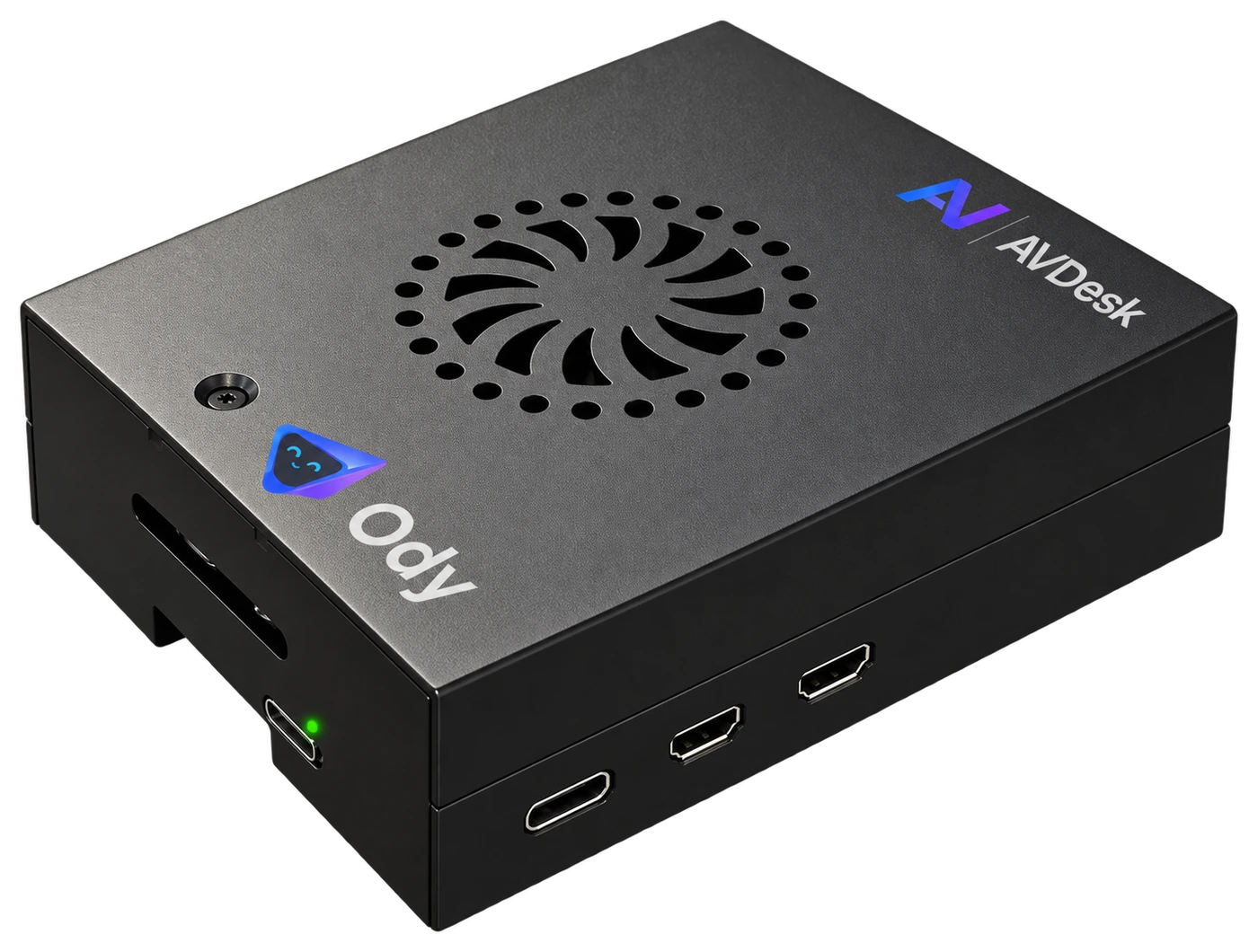
In AVDesk, Ody, the compact on-site box at each site, talks to projectors and displays over PJLink, SNMP and vendor protocols (it talks to AV equipment only) and connects outbound to the AVDesk cloud. Status, errors and readings appear against each device in its room; wakeup checks verify nominated rooms before the day starts; alerts raise tickets in the AV help desk; and power, input and mute commands are sent from the same screen and recorded. Explore remote AV monitoring and control, or book a demo with your own projectors.